Ziframe: Generative AI directly inside After Effects

Written on 21 January 2026, 02:10pm under Uncategorized

AI is a great tool for motion design, graphic design, and animation. If you’re already using AI in your motion work, the annoying part isn’t the results — it’s the constant context switching:

After Effects → browser → prompt → download → import → rename → place → realize it doesn’t quite work → repeat.

Ziframe changes that loop. It adds an AI panel directly inside After Effects so you can generate, edit, and iterate on assets without leaving the timeline. The important part isn’t just convenience — it’s that you’re making decisions in context, with timing, scale, color, and motion already in place.

Why staying inside After Effects actually changes how you work

When AI lives outside AE, you tend to:

  • treat AI output as “almost final” assets
  • overthink prompts instead of testing visually
  • hesitate to iterate because each try costs time

When AI lives inside AE:

  • you generate assets on the fly
  • you judge them directly in the comp
  • you start animating them immediately

The assets Ziframe outputs are automatically saved on your disk next to your project file, imported into your project panel and precomposed, so you can stay in the flow.

Ziframe also lets you use frames or images from your timeline as AI input, which is a good upgrade from traditional workflows. No longer going back and forth between AE and an AI tool.

That’s where the mixed workflow really happens.


Generating real assets, in your timeline

This allows you to generate things you actually animate:

  • graphic elements
  • illustrative scenes
  • abstract motion layers
  • texture passes
  • short video clips meant to live inside a comp

And because everything drops straight into the Project panel, you can:

  • precomp it
  • mask it
  • time-remap it
  • layer effects on top
  • animate it like any other AE asset

AI becomes another source layer, not a separate phase.


Using the timeline as an AI input

This is one of the most practical parts allowing an hybrid workflow.

You can:

  1. take a still frame from your comp
  2. use an image already in your project
  3. feed that into an image or video model

Then generate variations, motion, or style changes based on your design.

Models you can use directly inside After Effects

Ziframe connects to several models, each useful for different parts of a motion workflow (full list at ziframe.com/models).

Image generation & editing

  • Nano Banana – fast image generation and editing, great for reworking existing frames or exploring visual variations from a reference.
  • Seedream 4 – strong for iterative image generation, especially when you want multiple variations from a consistent base.
  • Flux 2 Pro – useful for more controlled image generation with specific formats or framing.
  • Z-Image Turbo – quick, lightweight image generation for rapid exploration.

You can also edit frames using Nano Banana — for example, taking a frame from your comp and reworking textures, details, or style before bringing it back into animation.

Video generation & motion

  • WAN 2.5 (text-to-video and image-to-video) – turn prompts or still frames into short motion clips that can be looped, masked, or treated as texture layers.
  • Seedance 1 Pro – useful when you want more structured motion or camera-aware clips.

Utility models

  • Background removal – quick alpha extraction for portraits, illustrations, or objects.
  • Image and video upscaling – useful for bringing low-res assets or AI outputs up to comp resolution.

A mixed workflow: AI generates, AE decides

A useful way to think about Ziframe is:

  • AI generates raw visual material
  • After Effects handles timing, composition, and polish

A typical loop might look like this:

  1. Generate an image using Seedream or Nano Banana.
  2. Drop it into a comp and color correct it, add a lens flare, etc.
  3. Feed it back into Nano Banana to add a variation.
  4. Give both images as starting and ending frame to Seedance to generate a video.
  5. Tweak the video in AE, add a sound, etc.

Why this fits motion designers specifically

Ziframe works because:

  • you see results in motion immediately
  • you evaluate assets in the real edit
  • you choose the best tool for the job wether it’s ai or an adjustment layer

Example: 

  • Rough pass: generate and animate custom assets quickly
  • Design phase: feed timeline frames back into AI for variations
  • Polish phase: replace only what needs custom animation

AI helps you explore faster.
After Effects is still where decisions happen.

TL;DR

Ziframe isn’t about automating motion design.
It’s about treating AI output as native timeline material you can immediately animate, modify, and iterate on.

If you already mix After Effects with AI tools, keeping that entire loop inside AE makes the process faster, lighter, and more flexible.

There are many things After Effects should take from Cinema 4D. One of them is the ability to hide an object from the viewport, but have it show up in the render. There are many ways you can do this in Cinema 4D (visibility switch, layers, etc.), but none in After Effects.

When working in After Effects, I will often have many layers and effects where I consider my work to be done. I know that what is on those layers is good to go, but having them visible slows down my previews and the responsiveness of the app. I don’t need to see everything at all time and I just want them out of the way while I work. Sure, I can manually toggle the visibility switch for each layer I want to hide, but this requires a lot of manual operations to toggle many of them on and off. There is no native way to do this, but there is a way.

(more…)

Animating to audio is an important part of working inside of After Effects. But it can become messy very quickly. As soon as you move things around you have to manually resynchronize everything. Here’s a solution that I’ve been using for a couple of years that works very well.

Disclaimer first, I know I found this expression somewhere at some point and saved it as an animation preset, but I have no idea where I found it. After some REsearch I was not able to find it. So if you happen to know where it comes from, please let me know in the comments and I will gladly give credit where its due.

How it works

First level compositions

Let’s say you have your main composition, which contains your animation. Inside of it are many compositions and each one is a scene. These are your first level compositions. In your main composition, place the composition you want synced. It might be a composition containing your voice-over. It may also contain a video. Whatever will work since we’re using time-remapping. For our example we’ll use # Main > Voice over.

Assuming that your main composition is called # Main (see A composition naming system for After Effects for why I think it should), you can just time-remap the composition you want synchronized and add this expression to the time-remap property.

parentComp = comp("# Main");

compStartTimeInParent = parentComp.layer(thisComp.name).startTime;
audioStartTimeInParent = parentComp.layer(thisLayer.name).startTime;
fullStartTime = thisLayer.startTime;
fullEndTime = thisLayer.outPoint+thisLayer.startTime;

linear(time, fullStartTime, fullEndTime, fullStartTime+compStartTimeInParent-audioStartTimeInParent, fullEndTime+compStartTimeInParent-audioStartTimeInParent)

Now replace the parentComp variable if your composition is named differently.

This expression was written by the great Zack Lovatt

This assumes your synchronized composition is not time-remapped inside the parent (# Main) composition. It should be anyway. The one placed in # Main is your guide composition. The one that will drive the ones placed inside your other compositions. When using a time-remapped parent, use the following technique.

Second level compositions

Your second level compositions are the ones placed inside the first level compositions. As in the hierarchy # Main > ## Scene 1 > ### Shot 1

## Scene 1 would be first level and ### Shot 1 would be second level. Again, refer to A composition naming system for After Effects if this naming system makes no sense to you.

For second level compositions to have a synchronized compositions, they have to refer a time-remapped parent composition. This can get problematic when reusing a composition inside many parents, but it will work when using a single child-parent hierarchy.

Use the same synchronized # Main > Voice over composition, time-remap it, and add this expression to its Time Remap property:

parentComp = comp("# Main > ## Scene 1");

compStartTimeInParent = parentComp.layer(thisComp.name).startTime;

parentComp.layer(thisLayer.name).timeRemap.valueAtTime(time + compStartTimeInParent)

And simply replace the parentComp variable.

For this to work, the targeted parent composition has to contain # Main > Voice over. The name of the composition is just an example, don’t worry about it. It is dynamic. And the targeted parent composition has to be time-remapped.

If you don’t care about setting those expressions yourself every time your want a layer synced, I get you. Presets do make things faster. Here’s links to presets for both setups:

  • First level compositions (preset named Sync Composition.ffx) Download
  • Second level compositions (preset named Sync Composition Time Remapped.ffx) Download

This thing has saved me countless hours over the years so I thought that’d make sense to share. Let me know if you have any questions of if you have another approach to this issue.

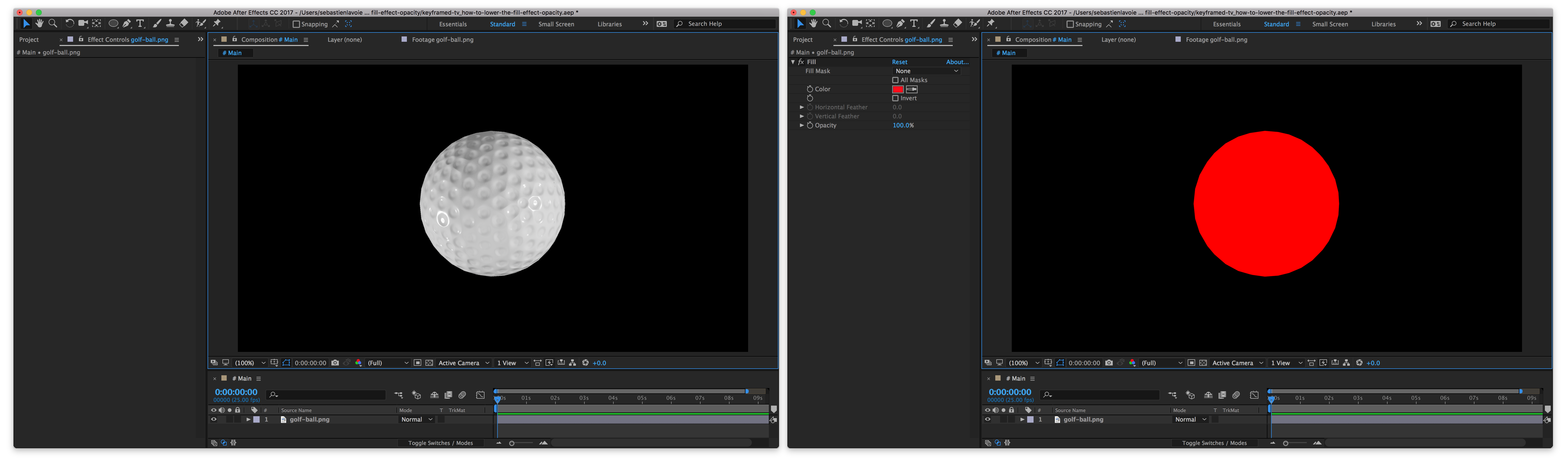
After Effect’s Fill effect is a very useful effect. If you have never used you probably should look into it. It’s the simplest effect. It just applies a color onto a layer. Basic stuff.

The weird thing with this effect is that its opacity property acts the same as with the Transform effect. It just bypasses the layer’s opacity. I’ve thought long and hard about why the After Effects team could’ve made that decision and never got to any conclusion. This feels like a bug that was called a feature but let’s give them the benefit of the doubt.

CC Composite is the solution

Now, there is a somewhat simple, yet not evident, way to fix this. The magic of CC Composite, a lesser-known effect that allows to composite your initial layer in your layer’s effects stack.

(more…)

A composition naming system for After Effects

Written on 24 November 2016, 12:15pm under Techniques

Tagged with: ,

First, I want to stress that I think that, to many After Effects users, organization and methodology is the most underestimated pain point and undervalued aptitude. These do not make the coolest tutorials, but developing a structure is what makes working in After Effects enjoyable.

Organization isn’t fun, but it allows fun to blossom

I am a little obsessive about order and organization. In the past, always searching for a composition in a stack of Pre-comp X used to take a lot of mental energy away from me. It would render my work process dull and inflexible. Coming from a programming background, I knew I needed more structure. I needed a system.

I have worked with many of animators over the years and came to the conclusion that there are probably as many ways to organize an After Effects file as there are After Effects licenses. Some people have folders hierarchy into which they classify their compositions; some prefer color codes and some just straight up improvise on each and every new project.

After some unsuccessful research for a system that would fit my work, I experimented various classifying and naming techniques. Today, after about three years of tweaking and using this system on more than 100 projects, I feel confident about its validity. Of course, usual disclaimer, this might not work as is for everybody. This article is very opinionated and takes into account only my personal use cases, so take it with a grain of salt and feel free to adapt it to your needs.

I have written a bit about file naming in a previous article. This one will especially tackle the compositions naming inside of a project.

(more…)

A File Naming Convention

Written on 25 March 2015, 04:27pm under Resources

Tagged with:

A well-structured naming convention is part of a good work hygiene. It simplifies your thought process on many small operations (saving, searching, sending, etc.) and removes risks of accidentally deleting or overwriting files. I won’t have the pretension to call this the file naming convention you should follow, but rather just propose it as a personally tested convention I find efficient and easy to follow.
(more…)

After Effects Shortcuts Cheat Sheet

Written on 17 June 2014, 04:55am under Resources

Tagged with:

After Effects has lots of shortcuts. Having them all in the same place makes it easier to find one in particular or to just learn those available.

This list has been generated from the shortcut file content which can be modified as explained in this article.

These are shortcuts for After Effects CC on OS X, but should be fairly similar on previous version or on windows.

(more…)

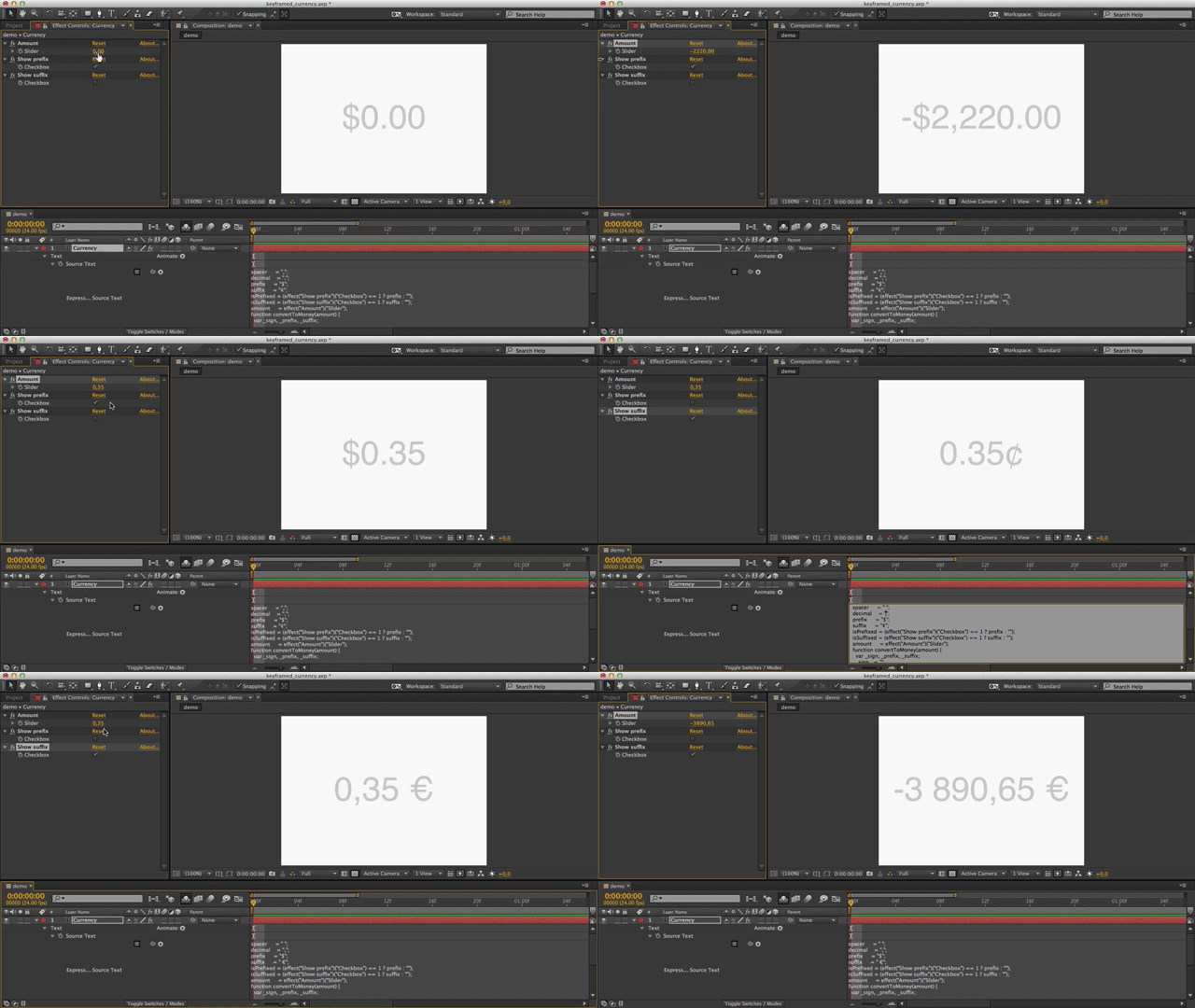
Expressions are a really powerful feature in After Effects. It can help you improve the quality and fluidity of your animation but it can also help you organize your project. Expressions if used well, gives you the opportunity to create yourself a custom dashboard on which you can control various global variables.

Create a controller

It is a good practice to keep a controller layer in a separate stand-alone composition. You will often see such a thing when you purchase items from marketplaces such as VideoHive.

But even when not selling your source files, you should act as if. Be it for a co-worker taking over your project or just the future you, who won’t enjoy searching through a messy compositions structure.

(more…)